TV UART: how to find the port and connect safely
UART on a TV board gives access to the bootloader and the console: you see the boot log, can stop autoboot and run commands. Connect carefully.
What you need
- A USB-UART adapter with 3.3 V logic.
- Thin wire or probes and a multimeter.
How to find the port
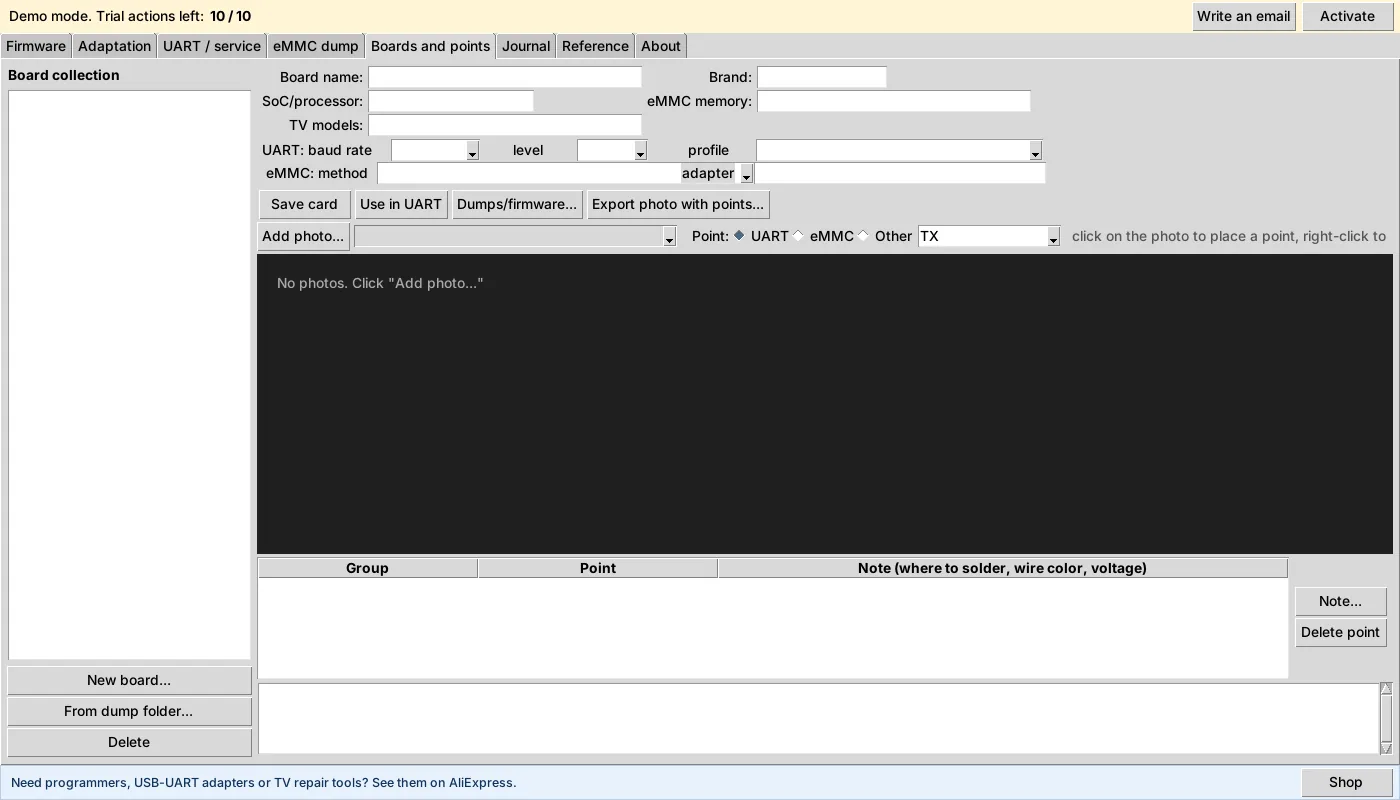
Look near the processor for a group of 3–4 pads or pins, often labelled TX, RX, GND. Check with a multimeter: GND beeps to a common ground, TX shows about 3.3 V at power-on with some “jitter” because of traffic. FW Tool has a “Boards and points” tab where you can save a board photo with notes on what goes where.
Connection
- Connect the adapter GND to the board GND.
- Adapter TX to board RX, adapter RX to board TX (crossed).
- Do not connect the adapter’s VCC/5 V to the board unless you are sure about the voltage. The TV is powered by its own supply.
Port settings
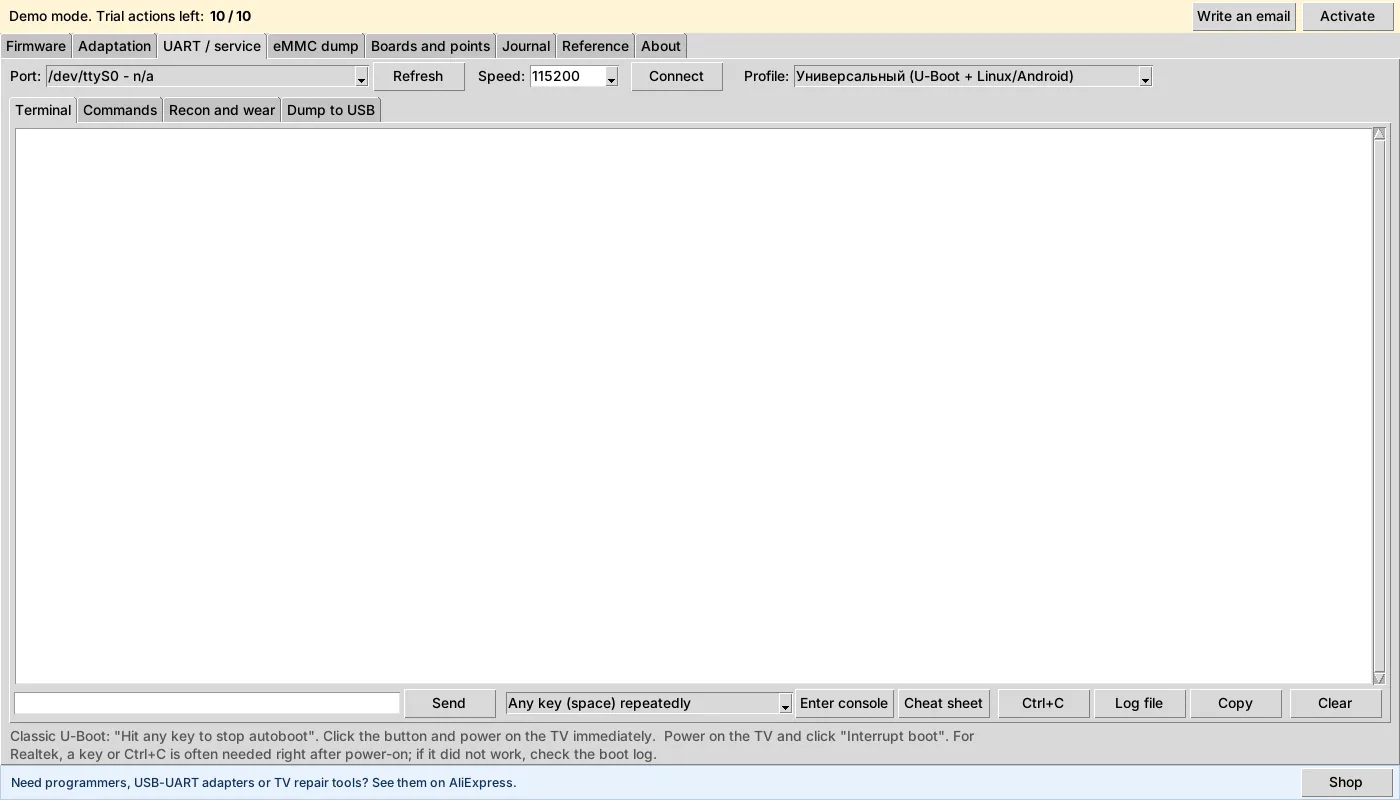
115200 baud is the most common, but it is not a rule: check the log. In FW Tool the top row selects the port, speed and bootloader profile (for example, universal U-Boot + Linux/Android).
Stopping the boot
Classic U-Boot prints “Hit any key to stop autoboot”: click the “interrupt boot” button in the program and power on the TV right away. On Realtek a key or Ctrl+C is sometimes needed right after power-on. If it did not work, check the boot log.
Read-only
The “Recon” and “Check eMMC wear” functions in FW Tool run read-only commands and save a report. It is a safe first step: you can build a profile for your board from the report.