Wrong panel settings: symptoms and what to change in the firmware
After replacing a panel or firmware the picture can look “strange”: wrong colours, a split in the middle, noise. It is almost always the LVDS settings. Typical symptoms below.
UNVERIFIED The symptoms are indicative and depend on the board and the panel. Check the panel and board datasheets.
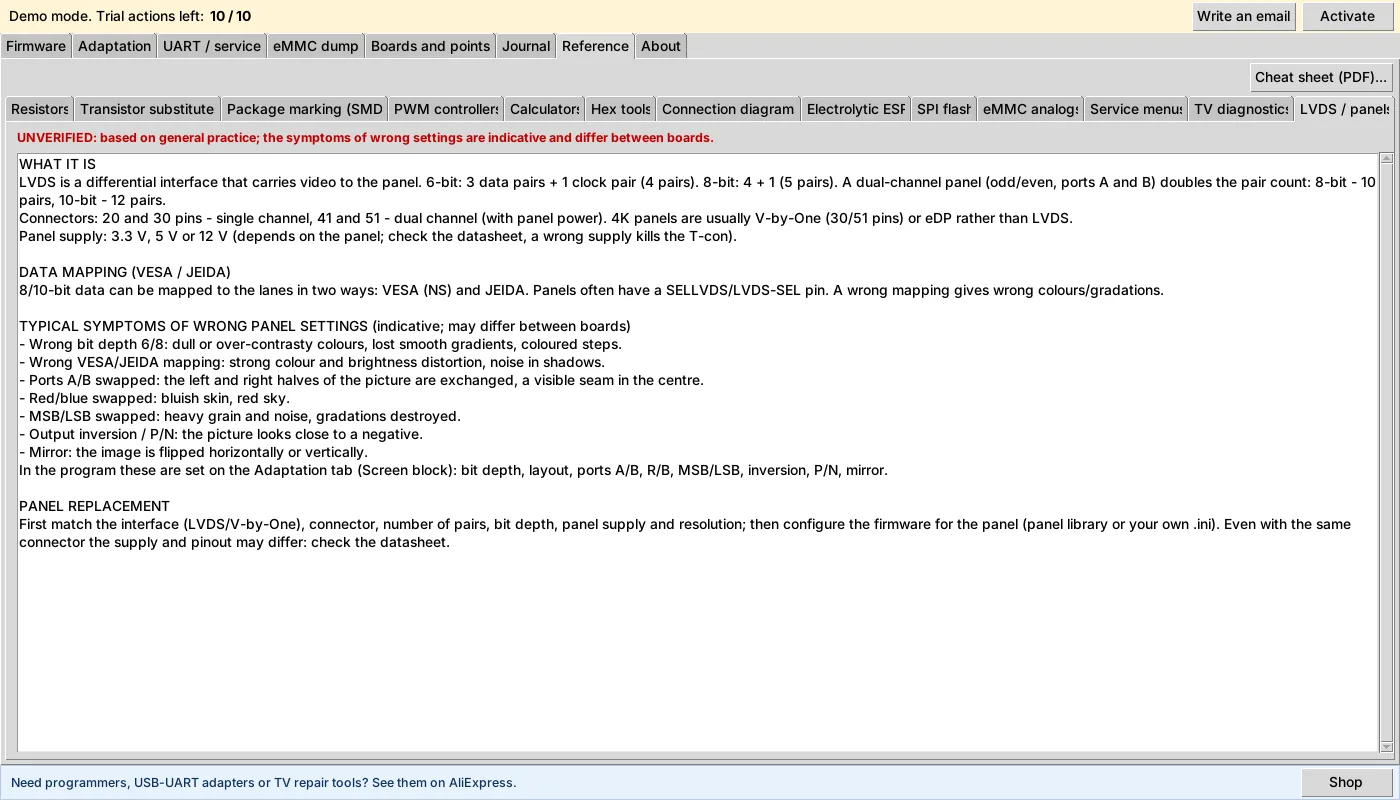
What LVDS is
LVDS is a differential interface that carries video to the panel. A 6-bit panel uses 3 data pairs plus 1 clock pair (4 pairs). 8-bit uses 4 data pairs plus 1 clock pair (5 pairs). Dual-channel panels (even and odd pixels, ports A and B) double the number of pairs.
Symptoms of wrong settings
| What you see | What to check |
|---|---|
| Low-contrast picture, stepped gradients, coloured bands | Bit depth 6/8 bit |
| Wrong colours and brightness, noise in shadows | VESA/JEIDA mapping |
| Left and right halves swapped, a visible seam in the centre | Ports A/B |
| Bluish skin, red sky | Red/blue swap |
| Heavy grain, gradations destroyed | MSB/LSB |
| The picture looks like a negative | Output inversion or P/N |
| The picture is flipped | Horizontal or vertical mirroring |
Where to change it in FW Tool
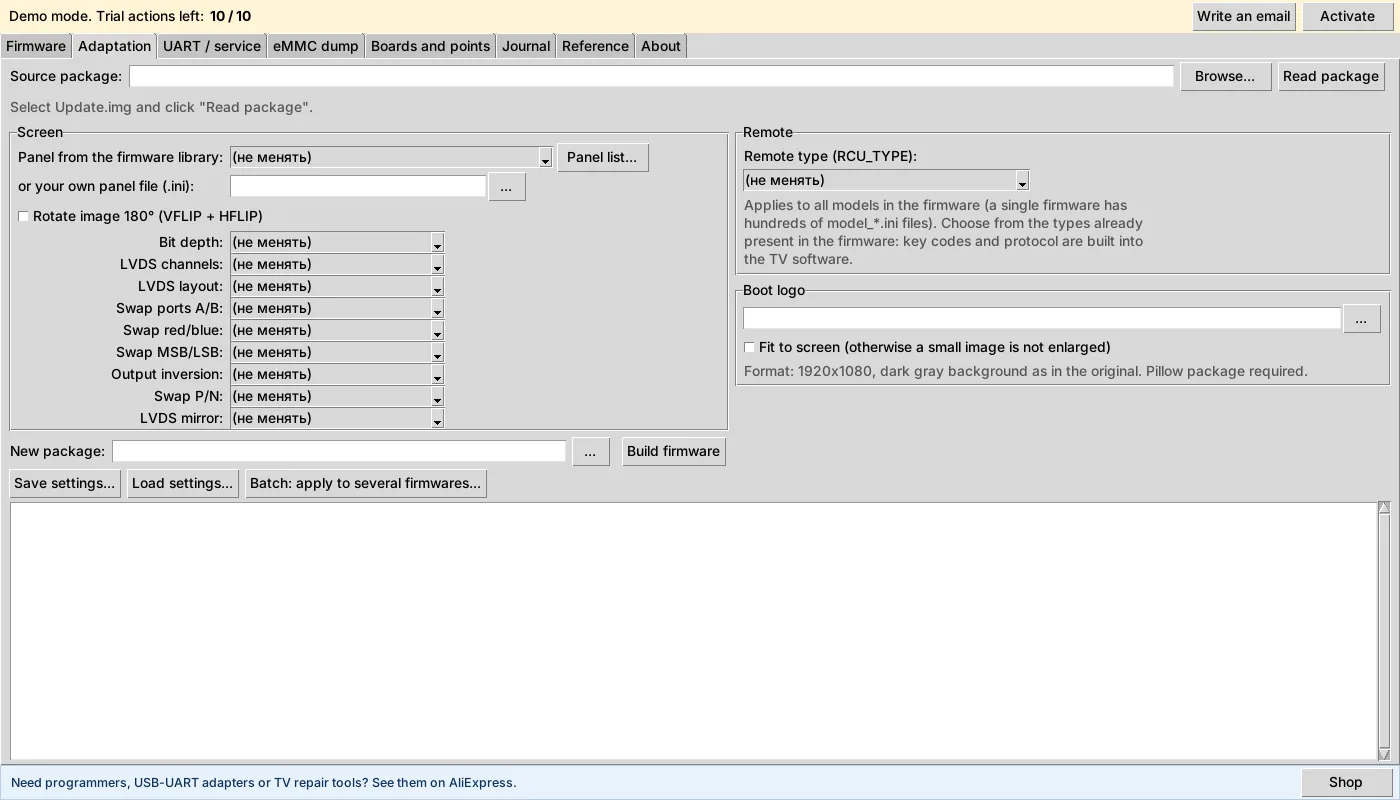
In the “Adaptation” tab, in the “Screen” block, you choose bit depth, number of LVDS channels, layout, ports A/B swap, red/blue, MSB/LSB, inversion, P/N and mirroring. The panel can be chosen from the library or from your own .ini.
Replacing a panel
First match the panel by interface (LVDS or V-by-One), connector, number of pairs, bit depth, supply and resolution. Even with the same connector the supply and pinout may differ: check the datasheet. A wrong panel supply (3.3 V, 5 V or 12 V) can damage it.